Rearrange your Home Screen from your Mac.
See every page of your iPhone or iPad at once, drag things where you want them, and check every change in plain words before it’s applied. Or just ask your AI agent.
brew install --cask belweave/tap/jigglemodeA self-playing demo with made-up apps: one app is dropped on another to make a “Travel” folder, the Review sheet lists the three changes, and applying ends with “Done”.
See everything
Every page, all at once.
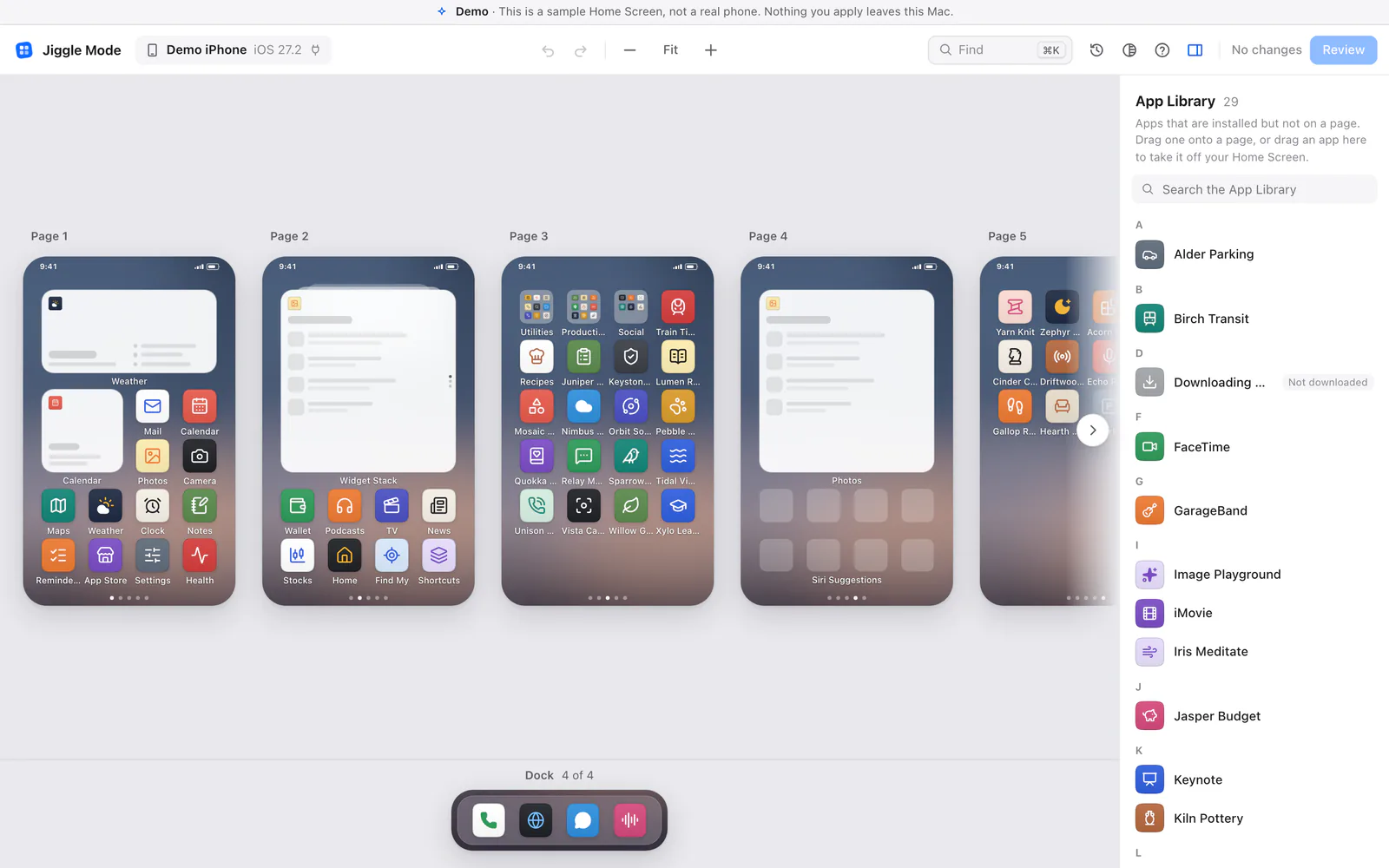
On the phone you see one page at a time and nudge icons across the edge. Here every page, the Dock and the App Library sit side by side on your Mac’s big screen, drawn with your phone’s own app icons.
Arrange
Drag, group, undo.
- Drag apps, folders and widgets between pages and the Dock.
- Drop one app on another to make a folder, the way you would on the phone.
- Send apps to the App Library to take them off your Home Screen. They stay installed.
- Find any app with ⌘ K and move it without hunting through pages.
- Undo every step with ⌘ Z. Nothing touches your phone while you experiment.
Find it, move it.
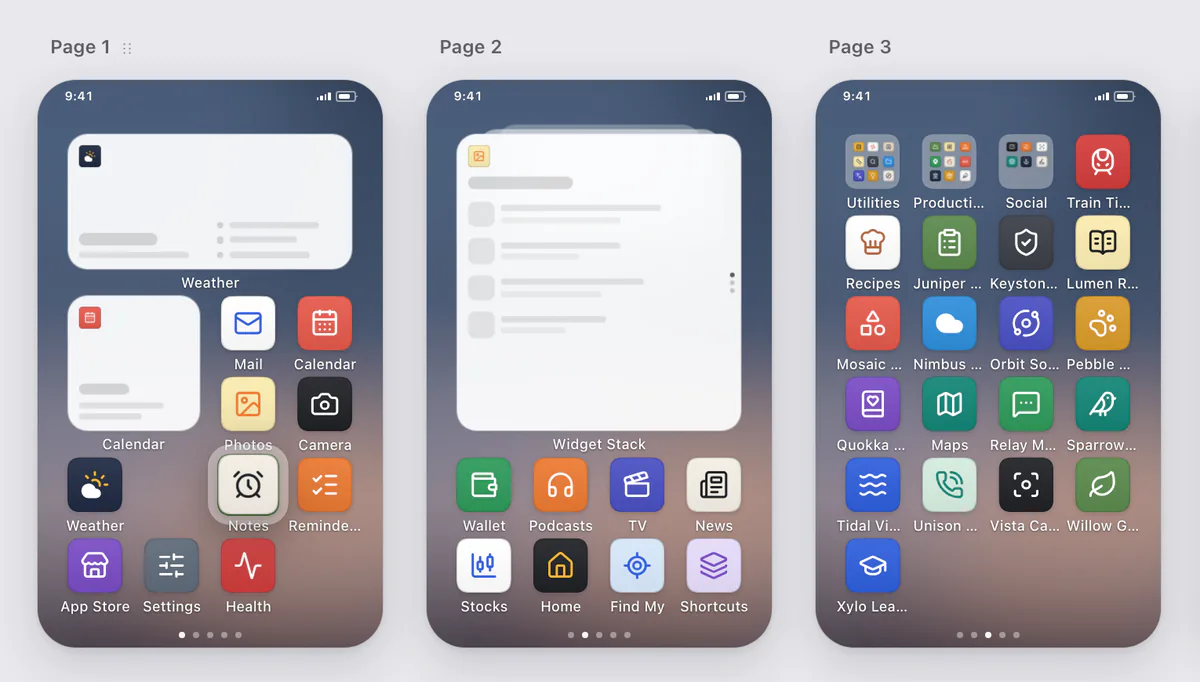
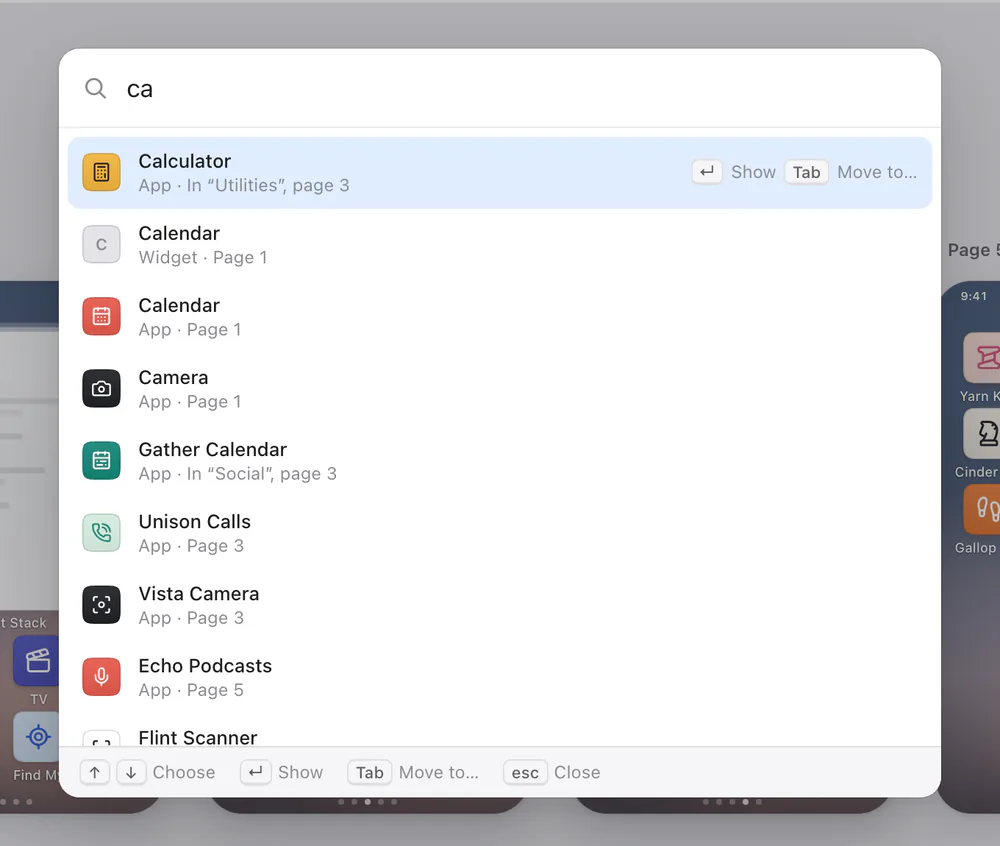
Type a few letters to find any app, folder or page, even inside a folder. Press Tab to move it somewhere else without dragging. Most things have a keyboard shortcut, and the focused icon moves with ⌥ and the arrow keys.
Review
Know exactly what will change.
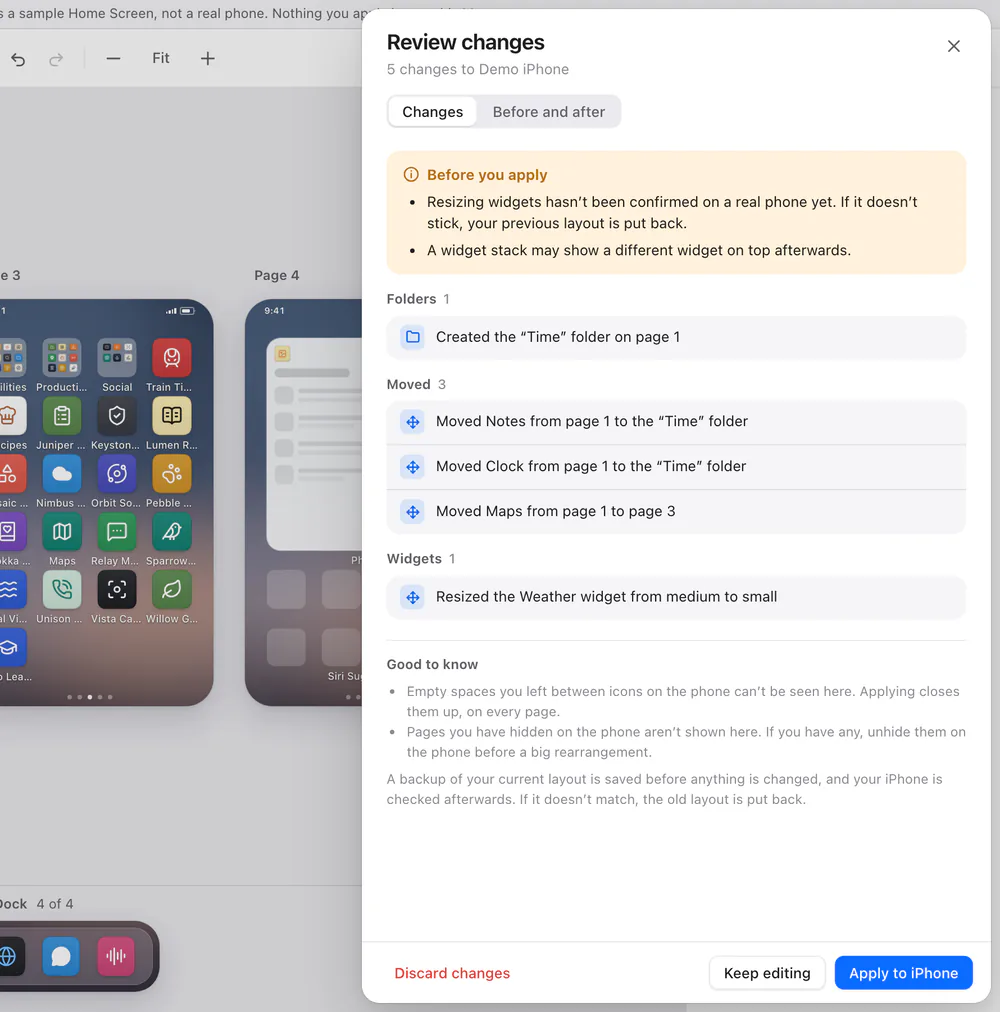
Before anything reaches your phone, Review lists every change in a plain sentence, shows the whole Home Screen before and after, and tells you anything worth knowing first, such as a widget stack that may show a different widget on top afterwards.
Nothing is written until you click Apply.
Safe by design
It only says “Done” when your phone shows it.
Every change, whether you make it or your agent does, goes through the same four steps. None of them can be skipped.
Back up
Your current layout is saved on your Mac before anything is sent.
Check, then write
The change is checked against the Home Screen’s rules (a full Dock, a full page, a widget that won’t fit), then sent to the phone.
Read it back
Jiggle Mode reads the phone again and compares it with what you asked for.
Put it back
If the phone doesn’t show exactly that, your old layout goes back automatically, and that is checked too.
Undo any time.
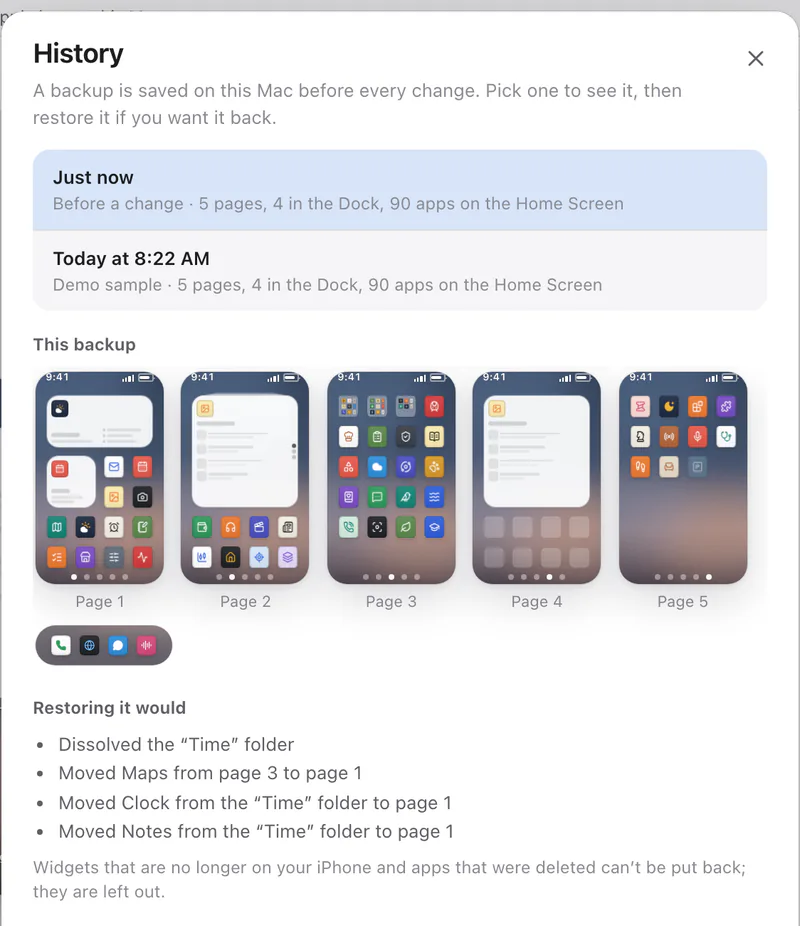
History keeps a backup from before every change. Pick one to see it, then restore it, from the editor, from your agent, or from Terminal:
jigglemode restore --latestIf something unexpected happens, Jiggle Mode tells you plainly, in words like “Your iPhone didn’t take the changes” or “Your changes were undone”, and what to do next.
Ask your agent instead
You never have to open the app.
Connect your AI agent once (Claude, ChatGPT and Codex, Gemini, Cursor, VS Code and others that speak MCP) and just ask. It reads your Home Screen, suggests a plan, and shows you the changes. Nothing changes until you say yes.
You
Put my travel apps in a folder on page 2, and swap the music app in my Dock for Quill Notes.
Agent
Here’s the plan for your iPhone, 5 changes:
- Created the “Travel” folder on page 2
- Moved Yonder Flights from page 2 to the “Travel” folder
- Moved Wander Hotels from page 1 to the “Travel” folder
- Moved Velvet Music from the Dock to page 1
- Moved Quill Notes from page 1 to the Dock
Shall I write these 5 changes to your iPhone now?
You
Yes.
 Jiggle Mode
An AI agent asks to write changes to the Home Screen on “iPhone”. 5 changes: … A backup is saved first. Apply only if you asked for this.
Agent
Done: your Home Screen now shows the change (checked by reading it back). If you want it undone, I can restore the backup taken just before.
Set it up once
Claude Code:
claude mcp add --transport stdio --scope user jigglemode -- jigglemode mcpCodex:
codex mcp add jigglemode -- jigglemode mcpClaude Desktop: double-click the extension from the download page. Gemini CLI, Cursor, VS Code and others: one line each.
Then teach your agent the safe way to work:
jigglemode skill installAt first your agent can only look. When you allow changes, Jiggle Mode still asks you to confirm each one itself, and your agent can’t answer for you. In the window on your Mac, Cancel is the default and no answer within 60 seconds counts as Cancel.
Connected, privately
On your desk, on your terms.
Cable, then Wi-Fi
Plug in, unlock, tap Trust. To go wireless, choose Set Up Wi-Fi… from the Jiggle Mode menu once, with the cable in. After that, Jiggle Mode can find your phone on the same Wi-Fi network.
Reading over Wi-Fi has been tested, with the cable still attached. Changing the Home Screen over Wi-Fi hasn’t been tried yet, so keep the cable in for changes for now.
Private by construction
No account, no sign-in, no analytics, no update check. The app connects to nothing on the internet: only to your phone, over the cable or your own Wi-Fi, and to your browser through a private address on your Mac.
Backups stay in a folder on your Mac. What’s stored where
Nothing on your phone
No app to install on the phone, no profile, no jailbreak. It never installs or deletes apps and never looks inside them. It only moves things on your Home Screen.
The phone must be unlocked and trust your Mac.
Honest limits
What it can’t do.
These are limits of what iOS lets a Mac do, as far as we know today.
- Add widgets. Widgets can be moved and removed, but not added, and a removed widget can’t be brought back from your Mac.
- Remove web clips. Safari web apps and web clips can be moved, but you delete them on the phone.
- See gaps or hidden pages. Empty spaces you left between icons, and pages you hid, aren’t visible to it. Applying closes the gaps; unhide pages before a big rearrangement.
- Promise the top widget of a stack. A widget stack is expected to keep its top widget (it did on our test phone), but it may show a different one afterwards.
- Change a locked phone. The phone must be unlocked and trust your Mac. A locked phone ignores the change; nothing needs undoing.
- Know which apps you use. It can’t see screen time or usage. Tell your agent, or arrange by hand.
Compatibility
What we’ve checked, and what we haven’t.
Jiggle Mode is a release candidate. It has been tested on one phone so far. Other iPhones, iPads and iOS versions are expected to work, but haven’t been tried yet.
| Device | Read the Home Screen | Rearrange and undo |
|---|---|---|
| iPhone Duo, iOS 27.2 | Tested over the cable and over Wi-Fi (cable still attached) | Tested over the cable · Not yet tried over Wi-Fi |
| Other iPhones | Expected, not yet tested | Expected, not yet tested |
| iPad | Expected, not yet tested | Expected, not yet tested |
| Mac | macOS 11 Big Sur or later. Built for Apple silicon and Intel; tested on Apple silicon. | |
Questions
Is it free?
Yes, Jiggle Mode is free to download and use.
Do I need to jailbreak my phone or install anything on it?
No. Nothing is installed on your phone. Jiggle Mode uses the same connection your Mac already uses for your iPhone or iPad over a cable, after you tap Trust on the phone.
What happens if something goes wrong while applying?
Before every change your current layout is saved on your Mac. After writing, Jiggle Mode reads the phone back. If the phone doesn’t show exactly what you asked for, the old layout is put back automatically and checked. If it can’t tell what happened, it says so plainly and tells you what to do; it never guesses. See Reviewing and applying.
Does it send my Home Screen anywhere?
The app itself makes no internet connections and has no analytics. If you use it through an AI agent, the agent sees your app and folder names and may send them to the AI service it runs on, like anything else you share with it. See Privacy and security.
Can it delete apps?
No. It never installs or deletes apps. Sending an app to the App Library only takes it off your Home Screen; it stays installed and searchable.
Does it work with iPad?
It is built for iPad too, and the editor draws the iPad’s Home Screen grid. It hasn’t been tested on a real iPad yet. See compatibility.
Which AI agents work with it?
Any agent app that supports MCP, the common way to connect tools to AI agents: Claude Code, Claude Desktop, Codex (including the ChatGPT desktop app), Gemini CLI, Cursor, VS Code with GitHub Copilot, and others. There is also a portable skill that teaches agents the safe way to work. See Using it with your AI agent.
Does it work on Windows or Linux?
No. Jiggle Mode is a Mac app.
